
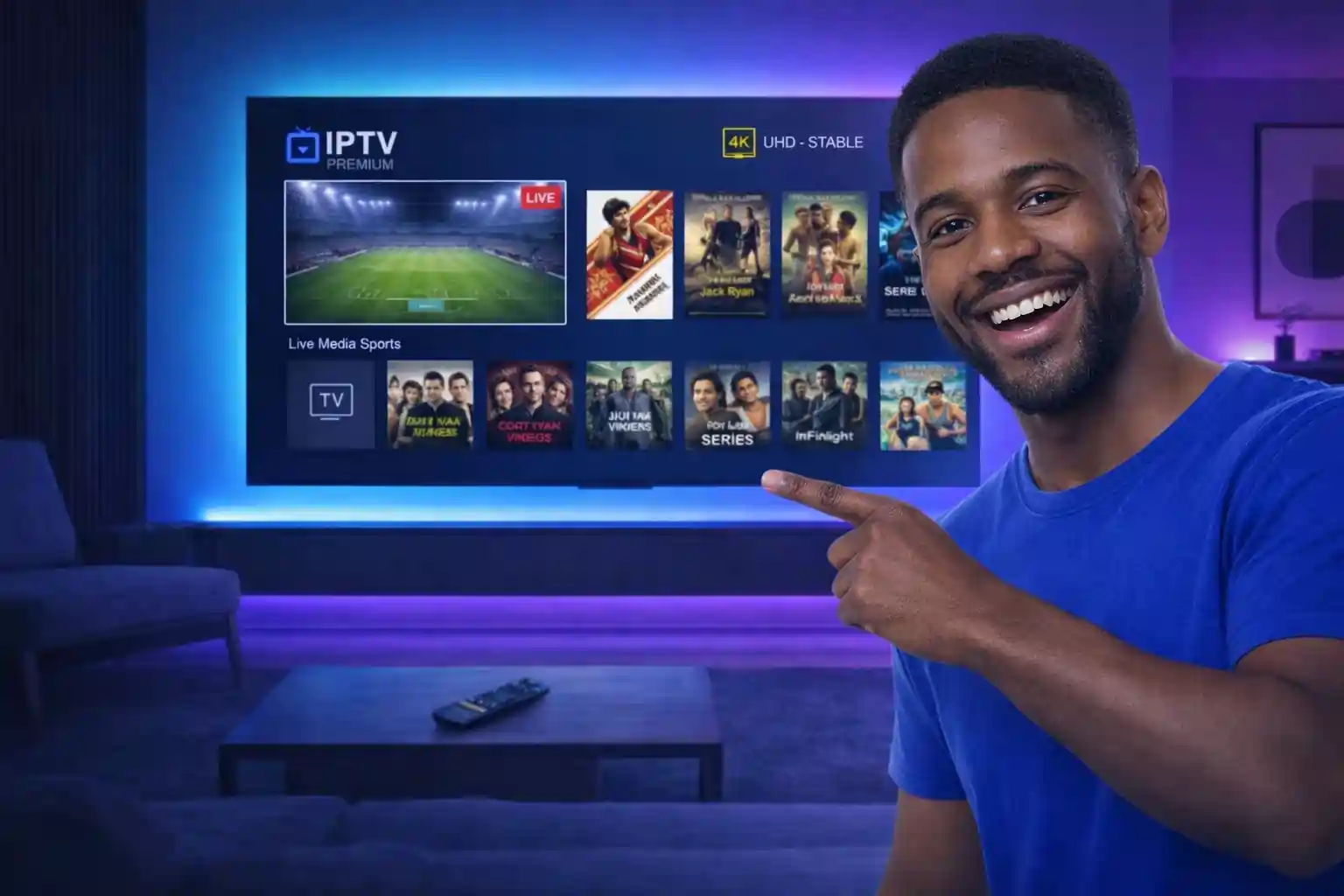
Getting IPTV for Smart TV set up is simpler than most people expect. Whether you own a Samsung, LG, Sony, or Android TV, IPVision UK can be running on your screen in under ten minutes without any satellite dish, engineer visit, or additional hardware. This guide covers every major Smart TV brand, the best apps to use on each, and a complete step-by-step installation process for 2026.
Which Smart TVs Support IPTV
IPTV for Smart TV works across all major television brands currently sold in UK retail. The setup method varies slightly by brand, but IPVision UK is compatible with all of the following.
- Samsung Smart TV (Tizen OS): Use the Smart IPTV app or SS IPTV, both available via the Samsung App Store
- LG Smart TV (webOS): Use the Smart IPTV app available in the LG Content Store
- Android TV and Google TV (Sony, Philips, TCL): Install IPTV Smarters Pro or TiviMate directly from the Google Play Store
- Hisense Smart TV: Android TV models support direct IPTV app installation. Vidaa OS models use a sideloading method
- Amazon Fire TV Edition: Built-in Fire OS supports all standard Firestick IPTV apps without any additional hardware
How to Set Up IPTV for Smart TV: Samsung and LG
Samsung and LG are the two most popular Smart TV brands in UK homes. Both use the Smart IPTV app, which is the most straightforward method for getting IPTV for Smart TV running on these platforms.
Step 1: Install Smart IPTV on Your Samsung or LG TV
Open the App Store on your Samsung (or Content Store on LG) and search for Smart IPTV. Install the app. Note that Smart IPTV charges a one-off fee of around £4.99 to unlock permanent use after a short trial period. This is a separate payment to the Smart IPTV developers and is not connected to your IPVision UK subscription.
Step 2: Add Your IPVision UK Playlist
Open the Smart IPTV app and note your TV’s MAC address displayed on screen. Visit the Smart IPTV website from a computer or phone and enter your MAC address along with your IPVision UK M3U URL. Save the settings and restart the app on your TV. Your full channel list will load automatically.
Step 3: Navigate and Watch
Once loaded, browse channels via the built-in EPG, access the VOD library from the main menu, and use catch-up to watch anything from the past 7 days. For full instructions tailored to your specific TV model, visit the IPVision UK setup guide.
How to Set Up IPTV for Smart TV: Android TV and Google TV
Android TV and Google TV models including Sony Bravia, Philips, and TCL televisions have direct access to the Google Play Store, making the IPTV for Smart TV setup process even simpler than Samsung or LG.
Open the Google Play Store on your TV and search for IPTV Smarters Pro or TiviMate. Both apps are available for free download. Open your chosen app, select Add Playlist or Login with Xtream Codes, and enter the credentials from your IPVision UK welcome email. The full channel list and VOD library will load within a minute. TiviMate is widely regarded as the best IPTV app for Android TV due to its superior EPG layout, catch-up support, and overall performance.
What You Get with IPVision UK on Your Smart TV
- 40,000+ live channels including Sky Sports, TNT Sports, BT Sport, BBC, ITV, Channel 4, and hundreds of international channels
- 150,000+ on-demand titles updated daily with new cinema releases and full TV series
- 4K and HD picture quality on all compatible channels at no extra cost
- Full EPG so you can browse schedules exactly like a traditional TV guide
- 7-day catch-up TV across all major UK channels
- UK-based servers with 99.9% uptime and anti-buffering infrastructure
According to Grand View Research, Smart TV penetration globally continues to rise rapidly, with internet-connected televisions now the primary screen for streaming content in most developed markets including the UK. IPTV for Smart TV is no longer a niche technology but the mainstream replacement for traditional satellite and cable subscriptions.
Tips for the Best IPTV Smart TV Performance
- Use a wired ethernet connection wherever possible. Most Smart TVs have a LAN port on the back and a wired connection eliminates almost all buffering caused by Wi-Fi interference
- Disable any active VPN before launching your IPTV app. VPNs add latency and frequently cause stream interruptions
- Clear your IPTV app cache once a week to keep performance sharp, especially on older Smart TV models
- Check your broadband speed using a speed test app on your TV. You need at least 25 Mbps for stable 4K streaming
IPVision UK Plans for Smart TV Users
Once your Smart TV is set up, choose the plan that suits your household. All plans give full access to 40,000+ channels and 150,000+ VOD titles from day one with no content restrictions on any tier.
1 Month Plans
- 1 Month, 1 Connection for £14.99. Ideal for solo viewers who want to start without a long commitment
- 1 Month, 2 Connections for £23.99. Two simultaneous Smart TV screens for couples or shared households
- 1 Month, 3 Connections for £29.99. Three independent screens for families wanting a short-term trial
3 Month Plans
- 3 Months, 1 Connection for £24.99, just £8.33 per month
- 3 Months, 2 Connections for £37.99. Three months of two-screen viewing
- 3 Months, 3 Connections for £49.99. Three months of full family streaming
6 Month Plans
- 6 Months, 1 Connection for £34.99, just £5.83 per month
- 6 Months, 2 Connections for £57.99. Six months of two-screen streaming
- 6 Months, 3 Connections for £79.99. Six months of full family streaming
12 Month Plans
- 12 Months, 1 Connection for £54.99, just £4.58 per month. The lowest rate on the site
- 12 Months, 2 Connections for £89.99. Best annual value for couples
- 12 Months, 3 Connections for £119.99. The ultimate family plan for a full year
Frequently Asked Questions
Does IPTV work on all Samsung Smart TVs?
Yes. Samsung Smart TVs from 2016 onwards support the Smart IPTV app via the Samsung App Store. Older models may require a different setup method. For specific model guidance visit the IPVision UK setup guide.
Do I need extra hardware to use IPTV on my Smart TV?
No. If your Smart TV runs Android TV, Google TV, Samsung Tizen, or LG webOS, you can install an IPTV app directly with no additional hardware. If your TV does not support IPTV apps natively, plugging in a Fire TV Stick or Chromecast is the simplest solution.
Can I try IPVision UK on my Smart TV before subscribing?
Yes. IPVision UK offers a free 24-hour trial with no payment details required. Simply contact us on WhatsApp to claim your trial credentials and test the full service on your Smart TV before choosing a plan.